Import CAD Files
In the first step, import the CAD model of the complete filter.
- Select Import → ImportGeo-CAD in the menu bar.
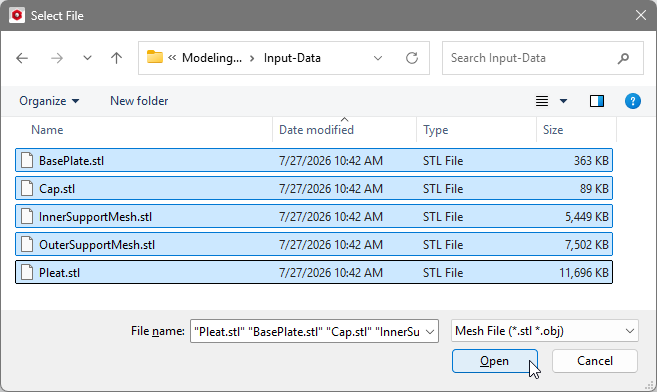
- In the ImportGeo-CAD module section, to the left side of the GeoDict GUI, click Browse… and navigate to the Input-Data folder supplied with this tutorial. Select all files and click Open.
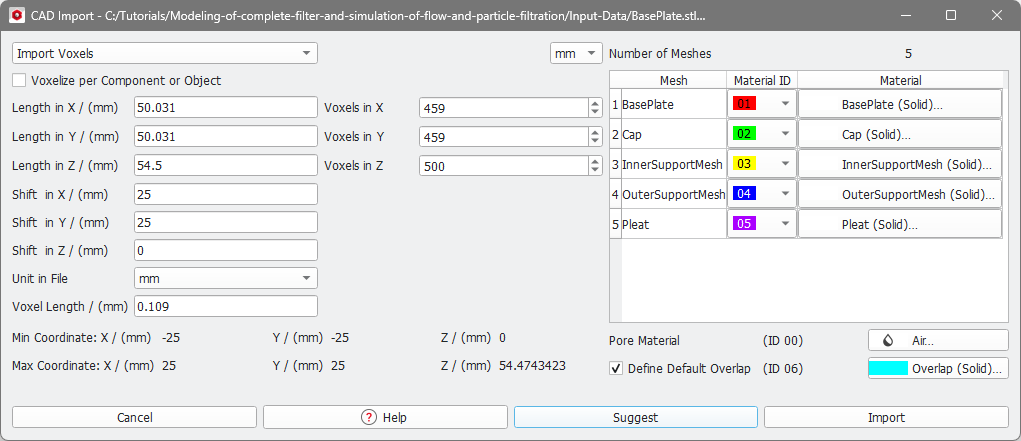
- The import options for the complete filter appear in a new dialog. Choose Import Voxels as import option and choose mm as Unit in File.
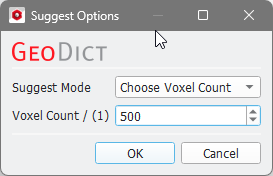
- Next, you need to define the domain size. This must be done in such a way that the CAD model lies completely inside of the domain. The easiest way to do this is to let GeoDict automatically find the appropriate domain boundaries. For this, click Suggest. In the opening Suggest Options dialog, select Choose Voxel Count as Suggest Mode and set the Voxel Count is 500. Click OK.
- After clicking OK, the values in the dialog are automatically filled in. The different materials and the material IDs were automatically assigned according to their stl file name by default:
- Click Import to import the complete filter into GeoDict. After the progress bar has disappeared, the structure is shown in the visualization area. Click the
 icon in the toolbar to change the view from 2D to 3D.
 - Under the Structure tab, in the View Controls panel (above the Visualization area), use Clip X, Clip Y, and Clip Z (as shown in the image below) to clip the visualization of the structure and observe the inner parts. Turn the 3D structure using the mouse.
Set the clipping sliders back to their outermost positions (0-459, 0-459, 0-500) such that the complete domain is shown before continuing this tutorial. - Click the Save Structure button
 in the toolbar or select Save Structure As... in the File menu and store the current structure under the file name CompleteFilter.gdt