Step 1: Select Constituent Materials
The CAD import automatically assigns different material IDs to the different parts of the CAD model. By default, material ID 00 is set to Air, and all other material IDs are unspecific (manually defined) Solid materials. So the next step after the import is to assign the correct materials to each material ID.
- To change the materials, click the
 icon in the toolbar. The Select Constituent Materials dialog opens.
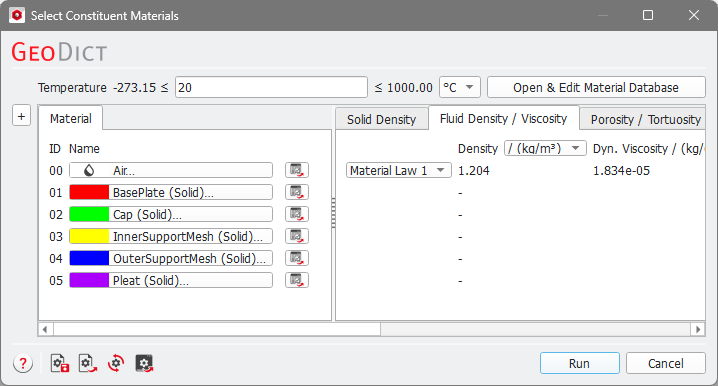
- The Material Selector of a material ID opens by clicking the button of this material ID. Here it is possible to change the constituent material of a material ID. For ID 00, select Oil as the fluid that will flow through the filter.
- Similarly, select Steel (A36) as solid material for the material IDs 01 to 04. (In fact, the selections made here for the solid materials of the filter housing and support meshes will actually not influence the flow or filtration results later, so you could as well select any other solid material.)
- The pleated filter (Pleat) has the ID 05. This is not a solid, impermeable material, but a porous material. Therefore, select Porous Solid - Manual as material in the Material Selector dialog. The pores of the porous material are filled with the fluid, so we also have to select a fluid that fills the pores here. Select Oil.
The material will be denoted as Oil in Porous. Additional properties of the porous material that are necessary for the simulations (like porosity or permeability) must be entered manually later in the corresponding FlowDict or FilterDict dialogs (this is the meaning of the name Manual here). - For the simulation, three additional material IDs will be needed: One to denote the inflow area, one to denote the outflow area and one to denote the ambient space. Inflow and Outflow area will be part of the fluid domain, so the material for theses material IDs should be oil, too. The ambient space is not part of the fluid domain, so we best set it to some solid material. To define these materials, click on the
 button on the top left of the dialog. Now, it is possible to define materials for all possible 256 material IDs.
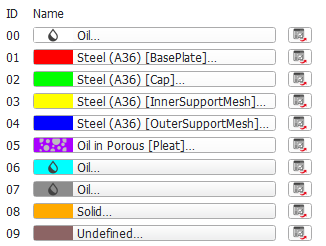
Select Oil for material ID 06 and material ID 07 and select Solid - Manual for material ID 08. The IDs 09 and higher can stay undefined, we will not need them. Overall, the material list should now look as follows:
- Click Run to close the Select Constituent Materials dialog and to apply the settings.