Repeat It Right: Recording and Reusing Workflows in GeoDict

Hidden Gems Article #2

Hidden Gems series

GeoDict is an innovative, modular software suite for digital material research and development, developed by Math2Market GmbH. It enables 3D image processing, microstructural modeling, and simulation-based material characterization and property prediction. 

This series of short articles highlights selected “hidden gems” of the GeoDict software that may not be widely known. While these features are not new, they often remain underutilized in everyday workflows.

The objective is to provide concise, practical insights that support a growing user base. Each article focuses on one specific functionality and illustrates its application through a simple example. The format is intentionally brief and application oriented, allowing readers to quickly assess potential relevance for their own work.

For a more detailed demonstration or to discuss specific use cases, direct contact is welcome!


1. Introduction

Image analysis workflows often involve many individual steps. Data must be loaded, segmentation methods selected, analysis parameters defined, and results exported. When similar datasets are analyzed repeatedly, manually repeating the same sequence can become time consuming and error prone. Even small differences in the workflow can lead to inconsistent results.

Recording analysis steps solves this problem. By documenting each step of a workflow, the exact same procedure can be repeated at any time. Recorded workflows can also be shared with colleagues, stored together with the results, and applied to new datasets when similar analyses are required.

GeoDict includes built in functionality that makes this process straightforward. Analysis steps can be recorded automatically during a session and saved as a macro. Once saved, the macro can be applied to another dataset and the entire workflow is executed again using the same settings and analysis procedures.

This article illustrates how workflow recording and reuse can be performed in GeoDict using two example datasets: a micro-CT scan of a concrete sample containing pores and a porous additively-manufactured structure.

The following workflow is shown:

  1. Loading image data and performing automatic Otsu segmentation 
  2. Setting up and running a porosity analysis with the PoroDict module
  3. Saving porosity analysis plots and a color-coded 3D porosity result
  4. Recording the analysis steps using the Session Macro
  5. Applying the saved macro to a second dataset 

All steps are performed using automated tools in GeoDict. The example shows how workflows can be recorded once and reused whenever similar datasets need to be analyzed, improving efficiency and ensuring reproducible results.


2. Load data and perform automatic Otsu segmentation

Before starting the anylsis in GeoDict, it is recommended to select a project folder so that all results are saved in the correct location. This is done from File → Select Project Folder.

The 3D dataset is then imported using the ImportGeo-Vol module and opened in the Image Processing panel. In this example, an automatic single-threshold Otsu segmentation is applied. This approach works well for datasets where pores are relatively large and the contrast between pores and material is clear. 

The screenshot below shows the Image Processing panel with the segmentation preview. After applying the segmentation, the panel is closed to return to the main GeoDict workspace.


3. Set up and run a porosity analysis with the PoroDict module

The PoroDict module is accessed from the Analyze menu in the main GeoDict workspace. In the PoroDict module section, several porosity analysis methods are available. In this example, the Identify Pores method is selected. 

Next, the Edit option is used to define the analysis settings. A minimum pore diameter of 3 voxels is specified. The options Pore-Fragment Reconnection and Remove Pore Fragments at Boundary are activated, and the Interface Threshold is set to 0%. These parameters are defined in the Pore segmentation dialog.

In the Output Options dialog, the option Save Pore Size Distribution is activated. The analysis is then stated by clicking OK followed by Run. For more information on PoroDict options and settings, please see the PoroDict Online User Guide

After the calculation is completed, the Result Viewer pops up with the analysis results, as shown in the screenshot below.

All steps performed during the process are automatically recorded in the Session Macro.


4. Save porosity analysis plots and a color coded 3D porosity result

In the Result Viewer, click Export in the bottom right corner and select Save Plots. This saves all analysis plots as images in the active project directory.

To visualize the pores color coded by size, open the Pore Visualization tab and select Load Pore Size Distribution. This loads the result into the workspace. The Result Viewer can then be closed.

Back in the main workspace, the color coded pore size distribution appears as a Volume Field, while the segmentation remains available as a Structure. The structure can be temporarily deactivated using its tickbox. In the Volume Field settings, set the visibility to Visible on Material IDs and select only the pore space. The pores are now visible in the 2D view, as shown in the screenshot below.

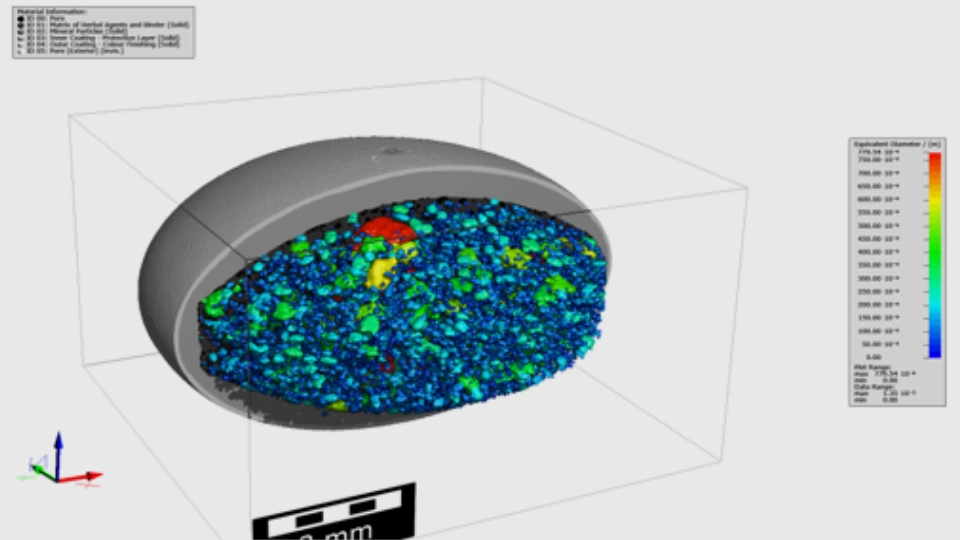
Switching to the 3D view allows the pore structure to be explored more clearly. In the Camera tab, activating Show Outlines and Show Shadows improves the visualization of individual pores, as shown in the figure below. 

Since pores touching the boundary were excluded from the analysis, they appear with zero values. A threshold can therefore be applied in the Volume Field settings to remove these pores from the visualization, as shown below.

Images of the visualization can be saved using the Save Image As icon. A rotation video can also be generated using Save Video As and selecting the preset Rotate Around Y option or another axis depending on the current orientation. 

When recording workflows, it is important to note that visualization settings also stored in the Session Macro. For this reason, the Volume Field – Clipping options should be disabled before saving images or videos, since other datasets may have different sizes. This ensures that the recorded macro can be applied reliably to other datasets.


5. Save the steps used in the analysis with the Session Macro

All analysis steps performed in GeoDict are automatically recorded in the Session Macro. This panel can be opened on the right of the main GeoDict workspace by selecting Session Macro. It lists the commands executed during the current session and provides a clear overview of the workflow.

The Session Macro acts as executable documentation of the analysis. It can be shared with colleagues or saved together with the results to document how they were obtained. 

The macro is stored as a readable Python script, which means it can also be copied to the clipboard, version controlled, and used as an audit trail of the workflow.

The screenshot below shows the Session Macro with the main steps of the analysis. 

To reuse the workflow, the recorded commands can be converted into a custom macro. This is done by clicking the double downward arrow to Add All Commands to Custom Macro. Before saving, the steps Change Active Folder and Import Greyvalue Image are removed, since the macro should be applicable to other datasets and directories. 

The macro can then be saved as a file in the current project directory.


6. Apply the saved macro to another dataset

To apply the macro to a new dataset, start with a fresh GeoDict session. First set the active directory to the folder containing the new dataset, and load the data using ImportGeo-Vol.

The dataset is opened in the Image Processing panel as usual, but the panel is closed immediately without performing segmentation.

To execute the workflow, copy the saved macro file to the active directory. In GeoDict, select Macro → Execute Macro, choose the macro file from the directory, and run it. 

The macro automatically repeats the recorded workflow on the new dataset. The resulting 3D visualization is shown below. 

The project folder now contains all generated results, including 3D images, a rotation video, a folder with plot images, and the GeoDict result files for further analysis if needed.

This dataset was provided with thanks by Rigaku Americas Inc, and was used in a recent e-book, which can be found HERE.


7. Conclusion

This article has demonstrated how repeatable workflows can be implemented in GeoDict. All analysis steps and parameter settings are automatically recorded in the Session Macro, providing a clear record of how results were generated. These recorded workflows can be shared with colleagues or reused to ensure consistent analysis across datasets and projects. 

The example also showed how the recorded steps can be converted into a macro directly and applied to a different dataset. The same workflow was executed automatically, generating comparable results without repeating the analysis manually. 

Automatic workflows in this way improves repeatability and efficiency. It allows:

  • One time analyses to become reusable methods
  • Teams to follow identical procedures
  • Results to remain comparable across projects

Macros can also be extended further, for example to process multiple datasets automatically or to perform more advanced analysis workflows

Future articles will explore these possibilities in more detail. The macro used in this example is available here: Download

If GeoDict is not yet part of the workflow, a trial license can be requested by going here: Trial license


Authors of the article

Anton Du Plessis, Ph.D.

is Director of Business Development, EMEA at Math2Market.

Do you need more information?

Book a consultation appointment with our experts online or contact us through the contact form!

Contact us